


Pandas how to guide#
Head & Tail#
How to use DataFrame.head() function#
To see the first n rows in the DataFrame.
Syntax:
DataFrame.head(n=5)
import pandas as pd

student_dict = {'Name': ['Joe', 'Nat', 'Harry','Jack','Jose','Jill','Rose'],
                'Age': [20, 21, 19,17,18,19,17],
                'Marks': [85.10, 77.80, 91.54,72,87.9,90,72]}

# create DataFrame from dict
student_df = pd.DataFrame(student_dict)

# display first 5 rows
topRows = student_df.head()
print(topRows)
Select top n rows in pandas DataFrame#
To display the first n rows of the DataFrame, we can pass the number of rows as a parameter to the DataFrame.head() function.
# display first 3 rows
topRows = student_df.head(3)
print(topRows)
    Name  Age  Marks
0    Joe   20  85.10
1    Nat   21  77.80
2  Harry   19  91.54
Select top rows except for last n rows#
To display all the rows except for the last n rows, we can pass the negative value as a parameter to the DataFrame.head() function.
import pandas as pd

student_dict = {'Name': ['Joe', 'Nat', 'Harry','Jack','Jose',"Jill","Rose"],
                'Age': [20, 21, 19,17,18,19,17],
                'Marks': [85.10, 77.80, 91.54,72,87.9,90,72]}

# create DataFrame from dict
student_df = pd.DataFrame(student_dict)

# display rows except bottom 2 rows
topRows = student_df.head(-2)
print(topRows)
    Name  Age  Marks
0    Joe   20  85.10
1    Nat   21  77.80
2  Harry   19  91.54
3   Jack   17  72.00
4   Jose   18  87.90
Select top rows from multi-index DataFrames#
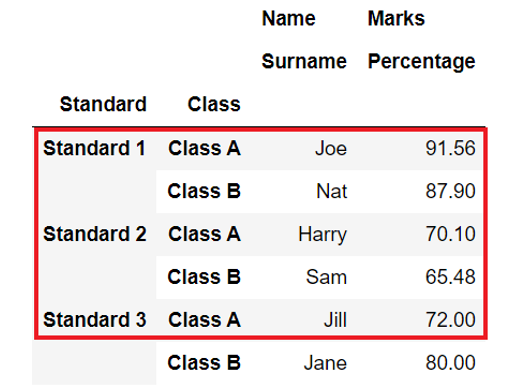
The DataFrame.head() function can be used on multi-index (hierarchical) DataFrames to display top rows, where multiple row indexes or column headers are present.
import pandas as pd

index = pd.MultiIndex.from_tuples([('Standard 1', 'Class A'), ('Standard 1', 'Class B'),
                                   ('Standard 2', 'Class A'), ('Standard 2', 'Class B'),
                                   ('Standard 3', 'Class A'), ('Standard 3', 'Class B')],
                                  names=['Standard', 'Class'])

columns = pd.MultiIndex.from_tuples([('Name', 'Surname'),
('Marks', 'Percentage')])

# create multi-index dataframe
student_df = pd.DataFrame([('Joe', 91.56), ('Nat', 87.90),('Harry', 70.10),
                           ('Sam', 65.48), ("Jill", 72), ("Jane", 80)],
                          index=index, columns=columns)

topRows = student_df.head()
print(topRows)
                      Name      Marks
                   Surname Percentage
Standard   Class
Standard 1 Class A     Joe      91.56
           Class B     Nat      87.90
Standard 2 Class A   Harry      70.10
           Class B     Sam      65.48
Standard 3 Class A    Jill      72.00
How to use DataFrame.tail() function#
To see the last n rows in the DataFrame.
Syntax:
DataFrame.tail(n=5)
import pandas as pd

student_dict = {'Name': ['Joe', 'Nat', 'Harry','Jack','Jose',"Jill","Rose"],
                'Age': [20, 21, 19,17,18,19,17],
                'Marks': [85.10, 77.80, 91.54,72,87.9,90,72]}

# create DataFrame from dict
student_df = pd.DataFrame(student_dict)

# display the bottom 5 rows
bottomRows = student_df.tail()
print(bottomRows)
    Name  Age  Marks
2  Harry   19  91.54
3   Jack   17  72.00
4   Jose   18  87.90
5   Jill   19  90.00
6   Rose   17  72.00
Select bottom n rows in pandas DataFrame#
To display the last n rows of the DataFrame, we can pass the number of rows as a parameter to the DataFrame.tail() function.
bottomRows = student_df.tail(3)
print(bottomRows)
   Name  Age  Marks
4  Jose   18   87.9
5  Jill   19   90.0
6  Rose   17   72.0
Select bottom rows except for first n rows#
To display all the rows except for the first n rows, we can pass the negative value as a parameter to the DataFrame.tail() function.
import pandas as pd

student_dict = {'Name': ['Joe', 'Nat', 'Harry','Jack','Jose',"Jill","Rose"],
                'Age': [20, 21, 19,17,18,19,17],
                'Marks': [85.10, 77.80, 91.54,72,87.9,90,72]}

# create DataFrame from dict
student_df = pd.DataFrame(student_dict)

# display top rows except the last 2 rows
bottomRows = student_df.tail(-2)
print(bottomRows)
    Name  Age  Marks
2  Harry   19  91.54
3   Jack   17  72.00
4   Jose   18  87.90
5   Jill   19  90.00
6   Rose   17  72.00
Select bottom rows from the multi index DataFrame#
We can apply the DataFrame.tail() function on multi-index DataFrames as well. It works in the same way as normal DataFrames.
import pandas as pd

index = pd.MultiIndex.from_tuples([('Standard 1', 'Class A'), ('Standard 1', 'Class B'),
                                   ('Standard 2', 'Class A'), ('Standard 2', 'Class B'),
                                   ('Standard 3', 'Class A'), ('Standard 3', 'Class B')],
                                  names=['Standard', 'Class'])

columns = pd.MultiIndex.from_tuples([('Name', 'Surname'),
('Marks', 'Percentage')])

# create multi-index dataframe
student_df = pd.DataFrame([('Joe', 91.56), ('Nat', 87.90), ('Harry', 70.10),
                           ('Sam', 65.48), ("Jill", 72), ("Jane", 80)],
                          index=index, columns=columns)

bottomRows = student_df.tail()
print(bottomRows)
                      Name      Marks
                   Surname Percentage
Standard   Class
Standard 1 Class B     Nat      87.90
Standard 2 Class A   Harry      70.10
           Class B     Sam      65.48
Standard 3 Class A    Jill      72.00
           Class B    Jane      80.00
Select value using row and column labels using DataFrame.at#
The DataFrame.at property allows accessing a specific element of a DataFrame using its column label and row index. It can be used with Multi-index DataFrames as well.
Note: It throws
KeyErrorif the label does not exist in DataFrame.
Example:

import pandas as pd

student_dict = {'Name': ['Joe', 'Nat', 'Harry',], 'Age': [20, 21, 19],
                'Marks': [85.10, 77.80, 91.54]}

# create DataFrame from dict
student_df = pd.DataFrame(student_dict)

value = student_df.at[2,"Age"]
print(value)  # --> Output: 19
19
Set specific value in pandas DataFrame#
When we want to update the value of the particular element from DataFrame based on its column label and row index, we can use DataFrame.at property.
import pandas as pd

student_dict = {'Name': ['Joe', 'Nat', 'Harry',], 'Age': [20, 21, 19],
                'Marks': [85.10, 77.80, 91.54]}

# create DataFrame from dict
student_df = pd.DataFrame(student_dict)
print(student_df.at[2,"Age"])

# change the value
student_df.at[2,"Age"] = 50
print(student_df.at[2,"Age"])
19
50
Select value using row and column position using DataFrame.iat#
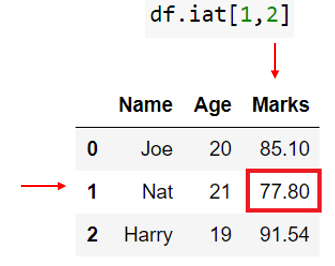
Allows you to select a single value from a DataFrame using integer-based row and column positions.
Example:
import pandas as pd

student_dict = {'Name': ['Joe', 'Nat', 'Harry',], 'Age': [20, 21, 19],
                'Marks': [85.10, 77.80, 91.54]}

# create DataFrame from dict
student_df = pd.DataFrame(student_dict)

value = student_df.iat[1,2]
print(value) # --> Output: 77.80
77.8
Set specific value in pandas DataFrame#
When we want to update the value of the particular element from DataFrame based on its column and row position, we can use DataFrame.iat property.
import pandas as pd

student_dict = {'Name': ['Joe', 'Nat', 'Harry'], 'Age': [20, 21, 19],
                'Marks': [85.10, 77.80, 91.54]}

# create DataFrame from dict
student_df = pd.DataFrame(student_dict)
print(student_df.iat[1,2])

# change value
student_df.iat[1,2]=90
print(student_df.iat[1,2])
77.8
90.0
Drop columns#
Drop single column#
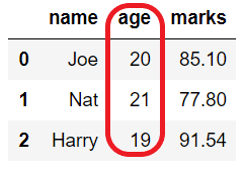
We may need to delete a single or specific column from a DataFrame.
import pandas as pd

student_dict = {"name": ["Joe", "Nat"], "age": [20, 21], "marks": [85.10, 77.80]}

# Create DataFrame from dict
student_df = pd.DataFrame(student_dict)
print(student_df)

# drop column
student_df = student_df.drop(columns='age')

print(student_df)
  name  age  marks
0  Joe   20   85.1
1  Nat   21   77.8
  name  marks
0  Joe   85.1
1  Nat   77.8
Drop multiple columns#
Use any of the following two parameters of DataFrame.drop() to delete multiple columns of DataFrame at once.
Use the
columnparameter and pass the list of column names you want to remove.Set the
axis=1and pass the list of column names.
import pandas as pd

student_dict = {"name": ["Joe", "Nat"], "age": [20, 21], "marks": [85.10, 77.80]}

student_df = pd.DataFrame(student_dict)
print(student_df.columns.values)

# drop 2 columns at a time
student_df = student_df.drop(columns=['age', 'marks'])

print(student_df.columns.values)
['name' 'age' 'marks']
['name']
Drop with axis='columns' or axis=1#
Let’s see how to drop using the axis-style convention. This is a new approach. (This approach makes this method match the rest of the pandas API) .
Use the axis parameter of a DataFrame.drop() to delete columns. The axis can be a row or column. The column axis represented as 1 or ‘columns’.
Set axis=1 or axis='columns' and pass the list of column names you want to remove…
import pandas as pd

student_dict = {"name": ["Joe", "Nat"], "age": [20, 21], "marks": [85.10, 77.80]}

# Create DataFrame from dict
student_df = pd.DataFrame(student_dict)
print("Original dataframe:\n",student_df)

student_df = student_df.drop(['age', 'marks'], axis='columns')
print("After droping columns in dataframe:\n", student_df)

# alternative both produces same result
#student_df = student_df.drop(['age', 'marks'], axis=1)
#print("After droping columns in dataframe:\n", student_df)
Original dataframe:
   name  age  marks
0  Joe   20   85.1
1  Nat   21   77.8
After droping columns in dataframe:
   name
0  Joe
1  Nat
Drop column in place#
In the above examples, whenever we executed drop operations, pandas created a new copy of DataFrame because the modification is not in place.
Parameter inplace is used to indicate if drop column from the existing DataFrame or create a copy of it.
If the
inplace=Truethen it updates the existing DataFrame and does not return anything.If the
inplace=Falsethen it creates a new DataFrame with updated changes and returns it.
Note: Set
inplace=Truewhen we are doing function chaining to avoid assigning the result back to a variable as we are performing modifications in place.
import pandas as pd

student_dict = {"name": ["Joe", "Nat"], "age": [20, 21], "marks": [85.10, 77.80]}

student_df = pd.DataFrame(student_dict)
print(student_df.columns.values)

# drop columns in place
student_df.drop(columns=['age', 'marks'], inplace=True)

print(student_df.columns.values)
['name' 'age' 'marks']
['name']
Drop column by suppressing errors#
By default, The DataFrame.drop() throws KeyError if the column you are trying to delete does not exist in the dataset.
If we want to drop the column only if exists then we can suppress the error by using the parameter errors.
Set
errors='ignore'to not throw any errors.Set
errors='raised'to throwKeyErrorfor the unknown columns
import pandas as pd

student_dict = {"name": ["Joe", "Nat"], "age": [20, 21], "marks": [85.10, 77.80]}

# Create DataFrame from dict
student_df = pd.DataFrame(student_dict)
print(student_df)

# supress error
student_df = student_df.drop(columns='salary', errors='ignore')  # No change in the student_df

# raise error
student_df = student_df.drop(columns='salary')  # KeyError: "['salary'] not found in axis"
  name  age  marks
0  Joe   20   85.1
1  Nat   21   77.8
---------------------------------------------------------------------------

KeyError                                  Traceback (most recent call last)

<ipython-input-5-245426098662> in <module>

     11

     12 # raise error

---> 13 student_df = student_df.drop(columns='salary')  # KeyError: "['salary'] not found in axis"


C:\ProgramData\Anaconda3\lib\site-packages\pandas\core\frame.py in drop(self, labels, axis, index, columns, level, inplace, errors)

   4306                 weight  1.0     0.8

   4307         """

-> 4308         return super().drop(

   4309             labels=labels,

   4310             axis=axis,


C:\ProgramData\Anaconda3\lib\site-packages\pandas\core\generic.py in drop(self, labels, axis, index, columns, level, inplace, errors)

   4151         for axis, labels in axes.items():

   4152             if labels is not None:

-> 4153                 obj = obj._drop_axis(labels, axis, level=level, errors=errors)

   4154

   4155         if inplace:


C:\ProgramData\Anaconda3\lib\site-packages\pandas\core\generic.py in _drop_axis(self, labels, axis, level, errors)

   4186                 new_axis = axis.drop(labels, level=level, errors=errors)

   4187             else:

-> 4188                 new_axis = axis.drop(labels, errors=errors)

   4189             result = self.reindex(**{axis_name: new_axis})

   4190


C:\ProgramData\Anaconda3\lib\site-packages\pandas\core\indexes\base.py in drop(self, labels, errors)

   5589         if mask.any():

   5590             if errors != "ignore":

-> 5591                 raise KeyError(f"{labels[mask]} not found in axis")

   5592             indexer = indexer[~mask]

   5593         return self.delete(indexer)


KeyError: "['salary'] not found in axis"
Drop column by index position#
If there is a case where we want to drop columns in the DataFrame, but we do not know the name of the columns still we can delete the column using its index position.
Note: Column index starts from 0 (zero) and it goes till the last column whose index value will be
len(df.columns)-1.
Drop the last column#
Assume you want to drop the first column or the last column of the DataFrame without using the column name.
In such cases, use the DataFrame.columns attribute to delete a column of the DataFrame based on its index position. Simply pass df.columns[index] to the columns parameter of the DataFrame.drop().
import pandas as pd

student_dict = {"name": ["Joe", "Nat"], "age": [20, 21], "marks": [85.10, 77.80]}

# Create DataFrame from dict
student_df = pd.DataFrame(student_dict)
print(student_df.columns.values)

# find position of the last column and drop
pos = len(student_df.columns) - 1
student_df = student_df.drop(columns=student_df.columns[pos])
print(student_df.columns.values)

# delete column present at index 1
# student_df.drop(columns = student_df.columns[1])
['name' 'age' 'marks']
['name' 'age']
Drop range of columns using iloc#
There could be a case when we need to delete the fourth column from the dataset or need to delete a range of columns. We can use DataFrame.iloc to select single or multiple columns from the DataFrame.
We can use DataFrame.iloc in the columns parameter to specify the index position of the columns which need to drop.
import pandas as pd

student_dict = {"name": ["Joe", "Nat"], "age": [20, 21], "marks": [85.10, 77.80]}

# Create DataFrame from dict
student_df = pd.DataFrame(student_dict)
print(student_df.columns.values)

# drop column from 1 to 3
student_df = student_df.drop(columns=student_df.iloc[:, 1:3])

print(student_df.columns.values)
['name' 'age' 'marks']
['name']
Drop first n columns#
If we need to delete the first ‘n’ columns from a DataFrame, we can use DataFrame.iloc and the Python range() function to specify the columns’ range to be deleted.
We need to use the built-in function range() with columns parameter of DataFrame.drop().
import pandas as pd

student_dict = {"name": ["Joe", "Nat"], "age": [20, 21], "marks": [85.10, 77.80], "class": ["A", "B"],
                "city": ["London", "Zurich"]}

# Create DataFrame from dict
student_df = pd.DataFrame(student_dict)
print("Before dropping: \n", student_df.columns.values)

# drop column 1 and 2
student_df = student_df.drop(columns=student_df.iloc[:, range(2)])

# print only columns
print("\nAfter dropping: \n", student_df.columns.values)
Before dropping:
 ['name' 'age' 'marks' 'class' 'city']

After dropping:
 ['marks' 'class' 'city']
Drop column from multi-index DataFrame#
DataFrame can have multiple column headers, such DataFrame is called a multi-index DataFrame. Such headers are divided into the levels where the first header is at level 0, the second header is at level 1, and so on.
We can drop a column from any level of multi-index DataFrame. By default, it drops columns from all the levels, but we can use a parameter level to drop from a particular level only.
We need to pass a level name or level index as level=level_index.
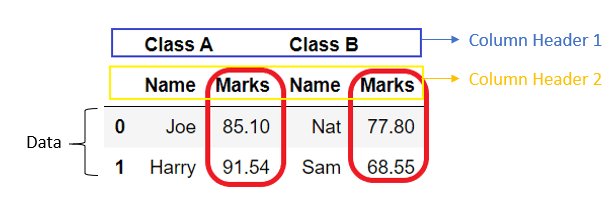
Note: If we do not provide a
levelparameter then it will drop the column from all the levels if exist.
import pandas as pd

# create column header
col = pd.MultiIndex.from_arrays([['Class A', 'Class A', 'Class B', 'Class B'],
                                 ['Name', 'Marks', 'Name', 'Marks']])
# create dataframe from 2darray
student_df = pd.DataFrame([['Joe', '85.10', 'Nat', '77.80'], ['Harry', '91.54', 'Sam', '68.55']], columns=col)
print("Before dropping column: \n", student_df)

# drop column
student_df = student_df.drop(columns=['Marks'], level=1)
print("\nAfter dropping column: \n", student_df)
Before dropping column:
   Class A        Class B
     Name  Marks    Name  Marks
0     Joe  85.10     Nat  77.80
1   Harry  91.54     Sam  68.55

After dropping column:
   Class A Class B
     Name    Name
0     Joe     Nat
1   Harry     Sam
Drop column using a function#
We can also use the function to delete columns by applying some logic or based on some condition. We can use built-in as well as user-defined functions to drop columns.
Drop all the columns using loc#
If we want to drop all the columns from DataFrame we can easily do that using DataFrame.loc in the columns parameter of DataFrame.drop().
DataFrame.loc is used to specify the column labels which need to delete. If we do not specify any column labels like df.loc[:] then it will drop all the columns in the DataFrame.
import pandas as pd

student_dict = {"name": ["Joe", "Nat"], "age": [20, 21], "marks": [85.10, 77.80]}

# Create DataFrame from dict
student_df = pd.DataFrame(student_dict)
print("Before dropping column: \n", student_df.columns.values)

# drop column 1 and 2
student_df = student_df.drop(columns=student_df.loc[:])

# print only columns
print("\nAfter dropping column: \n", student_df.columns.values)
Before dropping column:
 ['name' 'age' 'marks']

After dropping column:
 []
Drop column using pandas DataFrame.pop() function#
If we want to delete a single column then we can also do that using DataFrame.pop(col_label) function. We need to pass a column label that needs to delete.
It removes the column in-place by updating the existing DataFrame. It raises KeyError if the column is not found.
Note: It can be used to drop a column only. It cannot drop multiple columns or row(s).
import pandas as pd

student_dict = {"name": ["Joe", "Nat"], "age": [20, 21], "marks": [85.10, 77.80]}

# Create DataFrame from dict
student_df = pd.DataFrame(student_dict)
print("Before dropping column: \n", student_df)

# drop column
student_df.pop('age')

print("\nAfter dropping column: \n", student_df)
Before dropping column:
   name  age  marks
0  Joe   20   85.1
1  Nat   21   77.8

After dropping column:
   name  marks
0  Joe   85.1
1  Nat   77.8
Drop column using pandas DataFrame delete#
We can also use the pandas inbuilt function del to drop a single column from a DataFrame. It is a very simplified way of dropping the column from a DataFrame.
We need to select the column of DataFrame which needs to be deleted and pass it as del df[col_label].
Note: It can be used to drop a column only. It cannot drop multiple columns or row(s).
import pandas as pd

student_dict = {"name": ["Joe", "Nat"], "age": [20, 21], "marks": [85.10, 77.80]}

# Create DataFrame from dict
student_df = pd.DataFrame(student_dict)
print("Before dropping column: \n", student_df)

# drop column
del student_df['age']

print("\nAfter dropping column: \n", student_df)
Before dropping column:
   name  age  marks
0  Joe   20   85.1
1  Nat   21   77.8

After dropping column:
   name  marks
0  Joe   85.1
1  Nat   77.8
Drop duplicates but keep first#
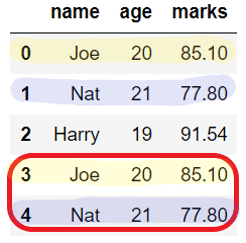
When we have the DataFrame with many duplicate rows that we want to remove we use DataFrame.drop_duplicates().
The rows that contain the same values in all the columns then are identified as duplicates. If the row is duplicated then by default DataFrame.drop_duplicates() keeps the first occurrence of that row and drops all other duplicates of it.
import pandas as pd

student_dict = {"name": ["Joe", "Nat", "Harry", "Joe", "Nat"], "age": [20, 21, 19, 20, 21],
                "marks": [85.10, 77.80, 91.54, 85.10, 77.80]}

# Create DataFrame from dict
student_df = pd.DataFrame(student_dict)
print("Before dropping duplicates: \n", student_df)

# drop duplicate rows
student_df = student_df.drop_duplicates()

print("\nAfter dropping column: \n", student_df)
Before dropping duplicates:
     name  age  marks
0    Joe   20  85.10
1    Nat   21  77.80
2  Harry   19  91.54
3    Joe   20  85.10
4    Nat   21  77.80

After dropping column:
     name  age  marks
0    Joe   20  85.10
1    Nat   21  77.80
2  Harry   19  91.54
Drop duplicates from defined columns#
By default, DataFrame.drop_duplicate() removes rows with the same values in all the columns. But, we can modify this behavior using a subset parameter.
For example, subset=[col1, col2] will remove the duplicate rows with the same values in specified columns only, i.e., col1 and col2.
import pandas as pd

student_dict = {"name":["Joe","Nat","Harry","Sam" ], "age":[20,21,19,21], "marks":[85.10, 77.80, 91.54, 77.80]}

# Create DataFrame from dict
student_df = pd.DataFrame(student_dict)
print("Before dropping duplicates: \n", student_df)

# drop duplicate rows
student_df = student_df.drop_duplicates(subset=['age','marks'])

print("\nAfter dropping column: \n", student_df)
Before dropping duplicates:
     name  age  marks
0    Joe   20  85.10
1    Nat   21  77.80
2  Harry   19  91.54
3    Sam   21  77.80

After dropping column:
     name  age  marks
0    Joe   20  85.10
1    Nat   21  77.80
2  Harry   19  91.54
Drop duplicates but keep last#
To keep only one occurrence of the duplicate row, we can use the keep parameter of a DataFrame.drop_duplicate(), which takes the following inputs:
first – Drop duplicates except for the first occurrence of the duplicate row. This is the default behavior.
last – Drop duplicates except for the last occurrence of the duplicate row.
False – Drop all the rows which are duplicate.
import pandas as pd

student_dict = {"name": ["Joe", "Nat", "Harry", "Nat"], "age": [20, 21, 19, 21], "marks": [85.10, 77.80, 91.54, 77.80]}

# Create DataFrame from dict
student_df = pd.DataFrame(student_dict)
print("Before dropping duplicates: \n", student_df)

# drop duplicate rows
student_df = student_df.drop_duplicates(keep='last')

print("\nAfter dropping column: \n", student_df)
Before dropping duplicates:
     name  age  marks
0    Joe   20  85.10
1    Nat   21  77.80
2  Harry   19  91.54
3    Nat   21  77.80

After dropping column:
     name  age  marks
0    Joe   20  85.10
2  Harry   19  91.54
3    Nat   21  77.80
Drop all duplicates#
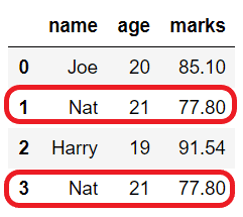
As explained in the above section, by default, DataFrame.drop_duplicates() keeps the duplicate row’s first occurrence and removes all others.
If we need to drop all the duplicate rows, then it can be done by using keep=False, as shown below.
import pandas as pd

student_dict = {"name": ["Joe", "Nat", "Harry", "Nat"], "age": [20, 21, 19, 21], "marks": [85.10, 77.80, 91.54, 77.80]}

# Create DataFrame from dict
student_df = pd.DataFrame(student_dict)
print("Before dropping duplicates: \n", student_df)

# drop all duplicate rows
student_df = student_df.drop_duplicates(keep=False)

print("\nAfter dropping column: \n", student_df)
Before dropping duplicates:
     name  age  marks
0    Joe   20  85.10
1    Nat   21  77.80
2  Harry   19  91.54
3    Nat   21  77.80

After dropping column:
     name  age  marks
0    Joe   20  85.10
2  Harry   19  91.54
Drop duplicates in place#
By default, DataFrame.drop_duplicates() removes the duplicates and returns the copy of the DataFrame.
But, if we want to make changes in the existing DataFrame, then set the flag inplace=True. It can be used when the drop operation is part of the function chaining.
import pandas as pd

student_dict = {"name": ["Joe", "Nat", "Harry", "Joe", "Nat"], "age": [20, 21, 19, 20, 21],
                "marks": [85.10, 77.80, 91.54, 85.10, 77.80]}

# Create DataFrame from dict
student_df = pd.DataFrame(student_dict)
print("Before dropping duplicates: \n", student_df)

# drop duplicate rows
student_df.drop_duplicates(inplace=True)

print("\nAfter dropping column: \n", student_df)
Before dropping duplicates:
     name  age  marks
0    Joe   20  85.10
1    Nat   21  77.80
2  Harry   19  91.54
3    Joe   20  85.10
4    Nat   21  77.80

After dropping column:
     name  age  marks
0    Joe   20  85.10
1    Nat   21  77.80
2  Harry   19  91.54
Drop duplicates and reset the index#
When we drop the rows from DataFrame, by default, it keeps the original row index as is. But, if we need to reset the index of the resultant DataFrame, we can do that using the ignore_index parameter of DataFrame.drop_duplicate().
If
ignore_index=True, it reset the row labels of resultant DataFrame to 0, 1, …, n – 1.If
ignore_index=Falseit does not change the original row index. By default, it is False.
import pandas as pd

student_dict = {"name": ["Joe", "Nat", "Harry", "Nat"], "age": [20, 21, 19, 21], "marks": [85.10, 77.80, 91.54, 77.80]}

# Create DataFrame from dict
student_df = pd.DataFrame(student_dict, index=['a', 'b', 'c', 'd'])
print("Before dropping duplicates: \n", student_df)

# drop duplicate rows
student_df = student_df.drop_duplicates(keep=False, ignore_index=True)

print("\nAfter dropping column: \n", student_df)
Before dropping duplicates:
     name  age  marks
a    Joe   20  85.10
b    Nat   21  77.80
c  Harry   19  91.54
d    Nat   21  77.80

After dropping column:
     name  age  marks
0    Joe   20  85.10
1  Harry   19  91.54
Drop column where at least one value is missing#
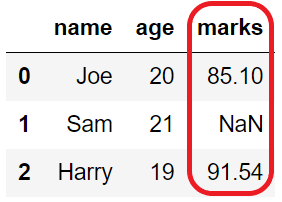
If we need to drop such columns that contain NA, we can use the axis=columns parameter of DataFrame.dropna() to specify deleting the columns.
By default, it removes the column where one or more values are missing.
import pandas as pd
import numpy as np

student_dict = {"name": ["Joe", "Sam", "Harry"], "age": [20, 21, 19], "marks": [85.10, np.nan, 91.54]}

# Create DataFrame from dict
student_df = pd.DataFrame(student_dict)
print("Before dropping column NA: \n", student_df)

# drop column with NaN
student_df = student_df.dropna(axis='columns')

print("\nAfter dropping column NA: \n", student_df)
Before dropping column NA:
     name  age  marks
0    Joe   20  85.10
1    Sam   21    NaN
2  Harry   19  91.54

After dropping column NA:
     name  age
0    Joe   20
1    Sam   21
2  Harry   19
Drop column where all values are missing#
We can drop an empty column from DataFrame using DataFrame.dropna().
We need to use how parameter as follows:
If
how='all', it drops the column where all the values are NA.By default,
how='any', it removes the columns where one or more values are NA.
import pandas as pd
import numpy as np

student_dict = {"name": ["Joe", "Sam", np.nan, "Harry"], "age": [np.nan, np.nan, np.nan, np.nan],
                "marks": [85.10, np.nan, np.nan, 91.54]}

# Create DataFrame from dict
student_df = pd.DataFrame(student_dict)
print("Before dropping column NA: \n", student_df)

# drop column with NaN
student_df = student_df.dropna(axis='columns', how='all')

print("\nAfter dropping column NA: \n", student_df)
Before dropping column NA:
     name  age  marks
0    Joe  NaN  85.10
1    Sam  NaN    NaN
2    NaN  NaN    NaN
3  Harry  NaN  91.54

After dropping column NA:
     name  marks
0    Joe  85.10
1    Sam    NaN
2    NaN    NaN
3  Harry  91.54
Drop column with the number of NA#
While cleaning the dataset, we can keep the columns with at least some data available in it else drop otherwise.
We need to use the parameter thresh=no_of_nonNA_values of DataFrame.drop() to specify the number of values that must be available in the column. Else, drop the column.
import pandas as pd
import numpy as np

student_dict = {"name": ["Joe", "Sam", np.nan, "Harry"], "age": [np.nan, np.nan, np.nan, np.nan],
                "marks": [85.10, np.nan, np.nan, 91.54]}

# Create DataFrame from dict
student_df = pd.DataFrame(student_dict)
print("Before dropping column NA: \n", student_df)

# keep column with 3 or more non-NA values
student_df = student_df.dropna(axis='columns', thresh=3)

print("\nAfter dropping column NA: \n", student_df)
Before dropping column NA:
     name  age  marks
0    Joe  NaN  85.10
1    Sam  NaN    NaN
2    NaN  NaN    NaN
3  Harry  NaN  91.54

After dropping column NA:
     name
0    Joe
1    Sam
2    NaN
3  Harry
Drop NA from defined rows#
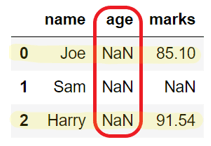
When we need to drop a column if it does not have data in its initial rows.
In such a case, we can use subset=[row1, row2] of DataFrame.dropna() to specify the list of row indexes so that it drops the columns containing missing values in these rows only, i.e., row1 and row2 in this case.
import pandas as pd
import numpy as np

student_dict = {"name": ["Joe", "Sam", "Harry"], "age": [np.nan, np.nan, np.nan], "marks": [85.10, np.nan, 91.54]}

# Create DataFrame from dict
student_df = pd.DataFrame(student_dict)
print("Before dropping column NA: \n", student_df)

# drop marks column with NaN
student_df = student_df.dropna(axis='columns', subset=[0, 2])

print("\nAfter dropping column NA: \n", student_df)
Before dropping column NA:
     name  age  marks
0    Joe  NaN  85.10
1    Sam  NaN    NaN
2  Harry  NaN  91.54

After dropping column NA:
     name  marks
0    Joe  85.10
1    Sam    NaN
2  Harry  91.54
Drop column with missing values in place#
We can drop columns from the existing DataFrame or by creating a copy of it. For that, we can use a flag inplace of DataFrame.dropna().
If the
inplace=True, then it updates the DataFrame and returns None.If
inplace=False, it returns the updated copy of the DataFrame.
import pandas as pd
import numpy as np

student_dict = {"name": ["Joe", "Sam", "Harry"], "age": [20, 21, 19], "marks": [85.10, np.nan, 91.54]}

# Create DataFrame from dict
student_df = pd.DataFrame(student_dict)
print("Before dropping row NA: \n", student_df)

# drop marks row with NaN
student_df.dropna(inplace=True)

print("\nAfter dropping row NA: \n", student_df)
Before dropping row NA:
     name  age  marks
0    Joe   20  85.10
1    Sam   21    NaN
2  Harry   19  91.54

After dropping row NA:
     name  age  marks
0    Joe   20  85.10
2  Harry   19  91.54
Rename columns#
Functions available in the pandas to rename columns of a simple DataFrame as well as multi-index DataFrame.
Function |
Description |
|---|---|
|
Rename column with label ‘old’ to ‘new’ |
|
Rename row index 0 (zero) to ‘I’ |
|
Rename all column labels by adding a prefix |
|
Rename all column labels by adding a suffix |
|
Reassign column names to new names |
|
Assign a name to column header or row index header |
Using rename with axis='columns' or axis=1#
This is a new approach.( This approach makes this method match the rest of the pandas API) .
Use the axis parameter of a df.rename() to rename columns and row index. The axis can be a row or column. The column axis represented as 1 or ‘columns’.
Set axis=1 and pass column names you want to rename as a dictionary (Key-Value pairs).
student_df = student_df.rename({'name': "a", 'age': "b", 'marks': "c"}, axis='columns')
# alternative both produces same result
student_df = student_df.rename({'name': "a", 'age': "b", 'marks': "c"}, axis=1)
Rename columns in place#
Specify inplace=True to rename the existing DataFrame rather than creating a copy of it.
If the
inplace=Truethen it updates the existing DataFrame and does not return anything.If the
inplace=Falsethen it creates a new DataFrame with updated changes and returns it.
Note: You don’t need to assign the result back to a variable as we are performing modifications in place.
import pandas as pd

student_dict = {"name": ["Joe", "Nat", "Harry"], "age": [20, 21, 19], "marks": [85.10, 77.80, 91.54]}

student_df = pd.DataFrame(student_dict)
# column names before rename
print(student_df.columns.values)

# rename columns inplace
student_df.rename(columns={'name': "a"}, inplace=True)
print(student_df.columns.values)
['name' 'age' 'marks']
['a' 'age' 'marks']
Rename column using a function#
We can use built-in as well as user-defined functions to rename columns.
import pandas as pd

student_dict = {"name": ["Joe", "Nat", "Harry"], "age": [20, 21, 19], "marks": [85.10, 77.80, 91.54]}

# Create DataFrame from dict
student_df = pd.DataFrame(student_dict)
# before rename
print(student_df.columns.values)

# rename column names using function
student_df.rename(columns=str.upper, inplace=True)
# after rename
print(student_df.columns.values)
['name' 'age' 'marks']
['NAME' 'AGE' 'MARKS']
Use lambda expressions to rename#
Also, you can use lambda expressions to rename column label or row index.
import pandas as pd

student_dict = {"#name": ["Joe", "Nat", "Harry"], "#age": [20, 21, 19], "#marks": [85.10, 77.80, 91.54]}

# Create DataFrame from dict
student_df = pd.DataFrame(student_dict)
# before rename
print(student_df.columns.values)

# remove first character of column names
student_df.rename(columns=lambda x: x[1:], inplace=True)
# after rename
print(student_df.columns.values)
['#name' '#age' '#marks']
['name' 'age' 'marks']
Rename columns by removing leading and trailing spaces#
Use lambda expression to rename columns by removing leading and trailing spaces from the column names
import pandas as pd

student_dict = {" name ": ["Joe", "Nat", "Harry"], " age   ": [20, 21, 19], "marks  ": [85.10, 77.80, 91.54]}

student_df = pd.DataFrame(student_dict)
print(student_df.columns.values)
# output [' name ' ' age   ' 'marks  ']

# remove leading and trailing space from column names
student_df.rename(lambda x: x.strip(), axis='columns', inplace=True)
print(student_df.columns.values)
# Output ['name' 'age' 'marks']
[' name ' ' age   ' 'marks  ']
['name' 'age' 'marks']
Rename all columns with a list#
Suppose we have a list of column names that we need to use to rename the existing DataFrame. In that case, we can pass the list of column labels to a DataFrame.columns attributes as shown in the below example.
It will replace the existing names with the new names in the order you provide.
import pandas as pd

student_dict = {"name": ["Joe", "Nat", "Harry"], "age": [20, 21, 19], "marks": [85.10, 77.80, 91.54]}

student_df = pd.DataFrame(student_dict)
# before rename
print(student_df.columns.values)

# rename column with list
student_df.columns = ['stud_name', 'stud_age', 'stud_marks']
# after rename
print(student_df.columns.values)
['name' 'age' 'marks']
['stud_name' 'stud_age' 'stud_marks']
Rename column by index position#
If there is a case where we want to rename the first column or the last column in the DataFrame, but we do not know the column name still we can rename the column using a DataFrame.columns attribute.
Note: Column index starts from 0 (zero) and it goes till the last column whose index value will be
len(df.columns)-1.
import pandas as pd

student_dict = {"name": ["Joe", "Nat", "Harry"], "age": [20, 21, 19], "marks": [85.10, 77.80, 91.54]}

student_df = pd.DataFrame(student_dict)
print("df.columns[2]:", student_df.columns[2])

# rename column present at index 2
student_df.rename(columns={student_df.columns[2]: 'percentage'}, inplace=True)
print("df.columns[2]:", student_df.columns[2])
df.columns[2]: marks
df.columns[2]: percentage
DataFrame.to_dict()#
Pandas have a DataFrame.to_dict() function to create a Python dict object from DataFrame.
Syntax:
DataFrame.to_dict(orient='dict', into=<class 'dict'>)
Parameter |
Dict format |
Key |
Value |
|---|---|---|---|
|
|
column label |
dict of row index and data |
|
|
column label |
list of data |
|
|
column label |
series of data |
|
|
row index, column labels, data |
list of row index, list of columns labels, list of data |
|
|
column label |
data |
|
|
row index |
dict of column label and data |
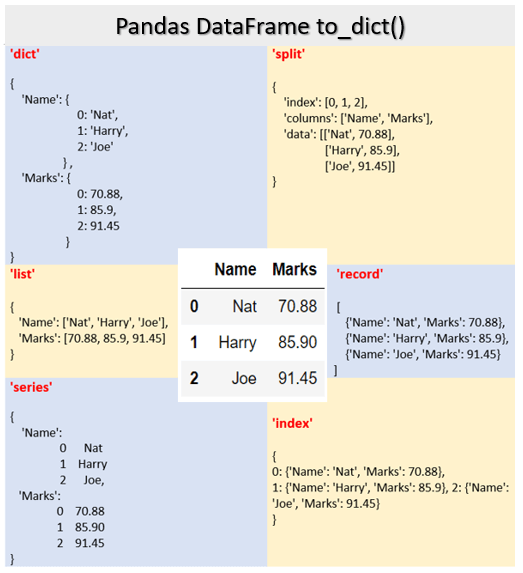
Convert pandas DataFrame to dict#
In the below example, we read the input from the student_data.csv file and create a DataFrame object. It is then converted into the Python dictionary object.
Input CSV file contains a simple dataset of student data with two columns, Name and Marks.
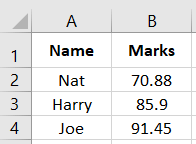
DataFrame is converted into dict using the default 'dict' parameter.
import pandas as pd

# create dataframe from csv
studentDf = pd.read_csv("student_data.csv")
print(studentDf)

# create dict from dataframe
studentDict = studentDf.to_dict()
print("\nResult dict: \n", studentDict)
    Name  Marks
0    Nat  70.88
1  Harry  85.90
2    Joe  91.45

Result dict:
 {'Name': {0: 'Nat', 1: 'Harry', 2: 'Joe'}, 'Marks': {0: 70.88, 1: 85.9, 2: 91.45}}
DataFrame to dict with a list of values#
It is a case when we have DataFrame, which needs to be converted into the dictionary object such that column label should be the keys in the dictionary, and all the columns’ data should be added into the resultant dict as a list of values against each key.
In that case, we can use 'list' parameter of the DataFrame.to_dict() function.
Syntax:
{column_label : [data]}
import pandas as pd

# create dataframe from csv
studentDf = pd.read_csv("student_data.csv")
print(studentDf)

# create dict from dataframe
studentDict = studentDf.to_dict('list')
print("\nResult dict: \n", studentDict)
    Name  Marks
0    Nat  70.88
1  Harry  85.90
2    Joe  91.45

Result dict:
 {'Name': ['Nat', 'Harry', 'Joe'], 'Marks': [70.88, 85.9, 91.45]}
DataFrame to dict with pandas series of values#
When we need to convert the DataFrame into dict whereas column name as a key of the dict. And row index and data as a value in the dict for the respective keys.
Syntax:
{column_label : Series(row_index data)}
In that case, we can use the 'series' parameter of DataFrame.to_dict() function.
import pandas as pd

# create dataframe from csv
studentDf = pd.read_csv("student_data.csv")
print(studentDf)

# create dict from dataframe
studentDict = studentDf.to_dict('series')
print("\nResult dict: \n", studentDict)
    Name  Marks
0    Nat  70.88
1  Harry  85.90
2    Joe  91.45

Result dict:
 {'Name': 0      Nat
1    Harry
2      Joe
Name: Name, dtype: object, 'Marks': 0    70.88
1    85.90
2    91.45
Name: Marks, dtype: float64}
DataFrame to dict without header and index#
When we want to collect the data from DataFrame without the column headers or we need to separate the row index and header from the data, we can use the 'split' parameter of DataFrame.to_dict() function. It splits the input DataFrame into three parts, i.e., row index, column labels, and actual data.
Syntax:
{'row_index' : [index], 'column_label' : [columns], 'data' : [data]}
import pandas as pd

# create dataframe from csv
studentDf = pd.read_csv("student_data.csv")
print(studentDf)

studentDict = studentDf.to_dict('split')
print("\n", studentDict)

# print only data
print("\nList of values from DF without index and header: \n", studentDict['data'])
    Name  Marks
0    Nat  70.88
1  Harry  85.90
2    Joe  91.45

 {'index': [0, 1, 2], 'columns': ['Name', 'Marks'], 'data': [['Nat', 70.88], ['Harry', 85.9], ['Joe', 91.45]]}

List of values from DF without index and header:
 [['Nat', 70.88], ['Harry', 85.9], ['Joe', 91.45]]
DataFrame to dict by row#
When we have a DataFrame where each row contains data that needs to be store in a separate dictionary object, i.e., we need a data row-wise, we can use the 'records' parameter of the DataFrame.to_dict() function.
It returns a list of dictionary objects. A dict for each row, where the key is a column label, and the value is column data.
Syntax:
{'row_index' : [index], 'column_label' : [columns], 'data' : [data]}
# import pandas library
import pandas as pd

# create dataframe from csv
studentDf = pd.read_csv("student_data.csv")
print(studentDf)

# create dict from dataframe
studentDict = studentDf.to_dict('record')
print(studentDict)
    Name  Marks
0    Nat  70.88
1  Harry  85.90
2    Joe  91.45
[{'Name': 'Nat', 'Marks': 70.88}, {'Name': 'Harry', 'Marks': 85.9}, {'Name': 'Joe', 'Marks': 91.45}]
C:\ProgramData\Anaconda3\lib\site-packages\pandas\core\frame.py:1549: FutureWarning: Using short name for 'orient' is deprecated. Only the options: ('dict', list, 'series', 'split', 'records', 'index') will be used in a future version. Use one of the above to silence this warning.
  warnings.warn(
DataFrame to dict by row index#
When we have a DataFrame with row indexes and if we need to convert the data of each row from DataFrame to dict, we can use the index parameter of the DataFrame.to_dict() function.
It returns a list of dictionary objects. A dict is created for each row. Where the key is a row index, and the value is dict of column label and data.
Syntax:
{row_index : {column_label : data}}
import pandas as pd

# create dataframe from csv
studentDf = pd.read_csv("student_data.csv")
print(studentDf)

# create dict from dataframe
studentDict = studentDf.to_dict('index')
print(studentDict)
    Name  Marks
0    Nat  70.88
1  Harry  85.90
2    Joe  91.45
{0: {'Name': 'Nat', 'Marks': 70.88}, 1: {'Name': 'Harry', 'Marks': 85.9}, 2: {'Name': 'Joe', 'Marks': 91.45}}
DataFrame to dict with one column as the key#
When we need to create a dict from DataFrame where one column as a key of dict and other columns as the value of the dict.
Suppose we have student DataFrame with two columns, student’s Name, and student’s Marks. And we need to store each student’s data in the dict where the student name is the Key and their marks as a Value of the dict.
We can do it in various ways, as shown below:
Using
df.set_index('Col1').to_dict()['Col2']Using
zip(df.Col1, df.Col2)Using
df.set_index('Col1').T.to_dict('list')
import pandas as pd

# create dataframe from csv
studentDf = pd.read_csv("student_data.csv")
print(studentDf)

# create dict with Name as key and marks as value
studentDict = studentDf.set_index('Name').to_dict()['Marks']

print(studentDict)
    Name  Marks
0    Nat  70.88
1  Harry  85.90
2    Joe  91.45
{'Nat': 70.88, 'Harry': 85.9, 'Joe': 91.45}
We can also achieve the same result using zip() the function.
# create dict with Name as key and marks as value
studentDict = dict(zip(studentDf.Name, studentDf.Marks))
If we want to collect the column data into the list, it can be done by applying transpose operation on the DataFrame and then converting it into dict.
import pandas as pd

# create dataframe from csv
studentDf = pd.read_csv("student_data.csv")
print(studentDf)

# create dict with Name as key and marks as value
studentDict = studentDf.set_index('Name').T.to_dict('list')
print(studentDict)
    Name  Marks
0    Nat  70.88
1  Harry  85.90
2    Joe  91.45
{'Nat': [70.88], 'Harry': [85.9], 'Joe': [91.45]}
DataFrame to dict using into parameter#
While converting a DataFrame to dict if we need output dict to be of a particular type, we can use the parameter into of DataFrame.to_dict() function. We can specify the class name or the instance of the class for the resultant dict.
# import pandas library
from collections import OrderedDict
import pandas as pd

# create dataframe from csv
studentDf = pd.read_csv("student_data.csv")
print(studentDf)

# convert dataframe to ordered dict
studentDict = studentDf.to_dict(into=OrderedDict)
print(studentDict)
    Name  Marks
0    Nat  70.88
1  Harry  85.90
2    Joe  91.45
OrderedDict([('Name', OrderedDict([(0, 'Nat'), (1, 'Harry'), (2, 'Joe')])), ('Marks', OrderedDict([(0, 70.88), (1, 85.9), (2, 91.45)]))])
DataFrame.set_index()#
This function is used to re-assign a row label using the existing column of the DataFrame. It can assign one or multiple columns as a row index. Let’s see how to use DataFrame.set_index() function to set row index or replace existing.
Syntax:
DataFrame.set_index(keys, drop=True, append=False, inplace=False, verify_integrity=False)
Return:
DataFrame with the changed row labels or None if inplace=True.
Set index using a column#
How to set index in pandas DataFrame?
Create pandas DataFrame
We can create a DataFrame from a CSV file or
dict.
Identify the columns to set as index
We can set a specific column or multiple columns as an index in pandas DataFrame. Create a list of column labels to be used to set an index.
['col_label1', 'col_label2'...]
Use
DataFrame.set_index()functionWe need to pass the column or list of column labels as input to the DataFrame.set_index() function to set it as an index of DataFrame. By default, these new index columns are deleted from the DataFrame.
df = df.set_index(['col_label1', 'col_label2'…])
Set the index in place
We can use the parameter
inplaceto set the index in the existing DataFrame rather than create a new copy.df.set_index(inplace=True)
import pandas as pd

student_dict = {'Name': ['Joe', 'Nat', 'Harry'], 'Age': [20, 21, 19], 'Marks': [85.10, 77.80, 91.54]}

# create DataFrame from dict
student_df = pd.DataFrame(student_dict)
print("Before set index: \n", student_df)

# set index using column
student_df = student_df.set_index('Name')
print("\nAfter set index: \n", student_df)
Before set index:
     Name  Age  Marks
0    Joe   20  85.10
1    Nat   21  77.80
2  Harry   19  91.54

After set index:
        Age  Marks
Name
Joe     20  85.10
Nat     21  77.80
Harry   19  91.54
Set index using a list#
We can also give a list of labels which can be strings or numbers to DataFrame.set_index() function to set a new index in the DataFrame.
First, we create a Python Index object from a list of labels and then pass it as input to the DataFrame.set_index() function.
import pandas as pd

student_dict = {'Name': ['Joe', 'Nat', 'Harry'], 'Age': [20, 21, 19], 'Marks': [85.10, 77.80, 91.54]}

# create DataFrame from dict
student_df = pd.DataFrame(student_dict)
print("Before set index: \n", student_df)

index = pd.Index(['s1', 's2', 's3'])
student_df = student_df.set_index(index)
print("\nAfter set index: \n", student_df)
Before set index:
     Name  Age  Marks
0    Joe   20  85.10
1    Nat   21  77.80
2  Harry   19  91.54

After set index:
      Name  Age  Marks
s1    Joe   20  85.10
s2    Nat   21  77.80
s3  Harry   19  91.54
Set index using multiple columns#
Python pandas have DataFrame with multiple columns or rows as an index, and they are also called multi-index DataFrame. If we want to set multiple columns as row labels, we can use DataFrame.set_index() function.
import pandas as pd

student_dict = {'Name': ['Joe', 'Nat', 'Harry'], 'Age': [20, 21, 19], 'Marks': [85.10, 77.80, 91.54]}

# create DataFrame from dict
student_df = pd.DataFrame(student_dict)
print("Before set index: \n", student_df)

# set multi-index
student_df = student_df.set_index(['Name', 'Marks'])
print("\nAfter set index: \n", student_df)
Before set index:
     Name  Age  Marks
0    Joe   20  85.10
1    Nat   21  77.80
2  Harry   19  91.54

After set index:
              Age
Name  Marks
Joe   85.10   20
Nat   77.80   21
Harry 91.54   19
Set multi-index using a list and column#
If there is a case where we want to create a two-level row index of the DataFrame, where one level is the new list of labels and another level is created from the existing column.
We can use DataFrame.set_index() to set the multi-level index of pandas DataFrame using a combination of a new list and the existing column.
We need to create a Python Index object from a list of new labels and pass that Index object and an existing column label as input to the DataFrame.set_index() function to create a two-level index.
import pandas as pd

student_dict = {'Name': ['Joe', 'Nat', 'Harry'], 'Age': [20, 21, 19], 'Marks': [85.10, 77.80, 91.54]}

# create DataFrame from dict
student_df = pd.DataFrame(student_dict)
print("Before set index: \n", student_df)

index = pd.Index(['s1', 's2', 's3'])
student_df = student_df.set_index([index, 'Name'])
print("\nAfter set index: \n", student_df)
Before set index:
     Name  Age  Marks
0    Joe   20  85.10
1    Nat   21  77.80
2  Harry   19  91.54

After set index:
           Age  Marks
   Name
s1 Joe     20  85.10
s2 Nat     21  77.80
s3 Harry   19  91.54
Set multi-index using two Python series#
When we want to replace the existing index with the multiple new series rather than the existing columns, we can create such a multi-index DataFrame by assigning new series using DataFrame.set_index() function.
import pandas as pd

student_dict = {'Name': ['Joe', 'Nat', 'Harry'], 'Age': [20, 21, 19], 'Marks': [85.10, 77.80, 91.54]}

# create DataFrame from dict
student_df = pd.DataFrame(student_dict)
print("Before set index: \n", student_df)

# set multi-index
s = pd.Series([1, 2, 3])
student_df = student_df.set_index([s, s ** 2])
print("\nAfter set index: \n", student_df)
Before set index:
     Name  Age  Marks
0    Joe   20  85.10
1    Nat   21  77.80
2  Harry   19  91.54

After set index:
       Name  Age  Marks
1 1    Joe   20  85.10
2 4    Nat   21  77.80
3 9  Harry   19  91.54
Set index using a Python range#
Suppose we need to set a sequence of numbers as an index of the DataFrame such that it should start at any number. For example, we want to assign a roll number to the student DataFrame beginning from 1.
It is not feasible to pass all the numbers as a list to the DataFrame.set_index() function. In such a case, we can use the Python range() function.
We can create pandas Index using range() function and pass it to the DataFrame.set_index() function.
import pandas as pd

student_dict = {'Name': ['Joe', 'Nat', 'Harry'], 'Age': [20, 21, 19], 'Marks': [85.10, 77.80, 91.54]}

# create DataFrame from dict
student_df = pd.DataFrame(student_dict, index=['s1', 's2', 's3'])
print("Before set index: \n", student_df)

# set index
index = pd.Index(range(1, 4, 1))
student_df = student_df.set_index(index)
print("\nAfter set index: \n", student_df)
Before set index:
      Name  Age  Marks
s1    Joe   20  85.10
s2    Nat   21  77.80
s3  Harry   19  91.54

After set index:
     Name  Age  Marks
1    Joe   20  85.10
2    Nat   21  77.80
3  Harry   19  91.54
Set index but keep column#
By default, DataFrame.set_index() function takes column name as input which should be used as an index of the DataFrame. After setting the new index, it deletes the column which is used.
If we do not want to delete such a column from DataFrame, then we need to use the drop parameter of DataFrame.set_index(). It is a boolean flag such that,
If
drop=True(default case), it deletes the column and uses it as an index.If
drop=False, it does not delete the column and uses it as an index.
import pandas as pd

student_dict = {'Name': ['Joe', 'Nat', 'Harry'], 'Age': [20, 21, 19], 'Marks': [85.10, 77.80, 91.54]}

# create DataFrame from dict
student_df = pd.DataFrame(student_dict)
print("Before set index: \n", student_df)

# set index, keep column
student_df = student_df.set_index('Name', drop=False)
print("\nAfter set index: \n", student_df)
Before set index:
     Name  Age  Marks
0    Joe   20  85.10
1    Nat   21  77.80
2  Harry   19  91.54

After set index:
         Name  Age  Marks
Name
Joe      Joe   20  85.10
Nat      Nat   21  77.80
Harry  Harry   19  91.54
Set index by keeping old index#
DataFrame.set_index() is used to set a new index to the DataFrame. It is also used to extend the existing DataFrame, i.e., we can update the index by append to the existing index.
We need to use the append parameter of the DataFrame.set_index() function to append the new index to the existing one. By default, the value of append is False.
import pandas as pd

student_dict = {'Name':['Joe','Nat','Harry'], 'Age':[20,21,19], 'Marks':[85.10, 77.80, 91.54]}

# create DataFrame from dict
student_df = pd.DataFrame(student_dict, index = ['s1','s2','s3'])
print("Before set index: \n", student_df)

# set index by append
student_df = student_df.set_index('Name', append=True)
print("\nAfter set index: \n", student_df)
Before set index:
      Name  Age  Marks
s1    Joe   20  85.10
s2    Nat   21  77.80
s3  Harry   19  91.54

After set index:
           Age  Marks
   Name
s1 Joe     20  85.10
s2 Nat     21  77.80
s3 Harry   19  91.54
Set index in place#
In the above examples, whenever we executed DataFrame.set_index() operation, pandas created a new copy of DataFrame because the modification is not-in place.
Specify inplace=True to set index in the existing DataFrame rather than creating a copy of it.
If inplace=True then it updates the existing DataFrame and does not return anything.
If inplace=False then it creates a new DataFrame with updated changes and returns it.
Note: You don’t need to assign the result back to a variable as we are performing modifications in place.
Example:
import pandas as pd

student_dict = {'Name': ['Joe', 'Nat', 'Harry'], 'Age': [20, 21, 19], 'Marks': [85.10, 77.80, 91.54]}

# create DataFrame from dict
student_df = pd.DataFrame(student_dict)
print("Before set index: \n", student_df)

# set index in place
student_df.set_index('Name', inplace=True)
print("\nAfter set index: \n", student_df)
Before set index:
     Name  Age  Marks
0    Joe   20  85.10
1    Nat   21  77.80
2  Harry   19  91.54

After set index:
        Age  Marks
Name
Joe     20  85.10
Nat     21  77.80
Harry   19  91.54
Set index using a column with duplicates#
By default, DataFrame.set_index() allows duplicate index. If we want to change this behavior, then we can use the verify_integrity parameter of DataFrame.set_index().
If
verify_integrity=True, then it checks the new index for duplicates and throwsValueError.If
verify_integrity=False, then it defers the check until necessary.
Note: Setting to
Falsewill improve the performance of this method.
import pandas as pd

student_dict = {'Name':['Joe','Nat','Joe'], 'Age':[20,21,19], 'Marks':[85.10, 77.80, 91.54]}

# create DataFrame from dict
student_df = pd.DataFrame(student_dict)
print("Before set index: \n", student_df)

# set index error case
student_df = student_df.set_index('Name', verify_integrity=True)
print("\nAfter set index: \n", student_df)
Before set index:
   Name  Age  Marks
0  Joe   20  85.10
1  Nat   21  77.80
2  Joe   19  91.54
---------------------------------------------------------------------------

ValueError                                Traceback (most recent call last)

<ipython-input-10-f6b2789c4214> in <module>

      8

      9 # set index error case

---> 10 student_df = student_df.set_index('Name', verify_integrity=True)

     11 print("\nAfter set index: \n", student_df)


C:\ProgramData\Anaconda3\lib\site-packages\pandas\core\frame.py in set_index(self, keys, drop, append, inplace, verify_integrity)

   4777         if verify_integrity and not index.is_unique:

   4778             duplicates = index[index.duplicated()].unique()

-> 4779             raise ValueError(f"Index has duplicate keys: {duplicates}")

   4780

   4781         # use set to handle duplicate column names gracefully in case of drop


ValueError: Index has duplicate keys: Index(['Joe'], dtype='object', name='Name')
Set index by column number#
If we need to set single or multiple columns as an index of the DataFrame, but we do not know the column labels to pass to DataFrame.set_index() function. In such a case, we can use the columns parameter of the DataFrame to retrieve the column index position.
We need to create a list of columns using column position df.columns[[0,1]] and pass it to the DataFrame.set_index() function.
import pandas as pd

student_dict = {'Name':['Joe','Nat','Harry'], 'Age':[20,21,19], 'Marks':[85.10, 77.80, 91.54]}

# create DataFrame from dict
student_df = pd.DataFrame(student_dict)
print("Before set index: \n", student_df)

# set index
cols = list(student_df.columns[[0,2]])
student_df = student_df.set_index(cols)
print("\nAfter set index: \n", student_df)
Before set index:
     Name  Age  Marks
0    Joe   20  85.10
1    Nat   21  77.80
2  Harry   19  91.54

After set index:
              Age
Name  Marks
Joe   85.10   20
Nat   77.80   21
Harry 91.54   19
DataFrame.reset_index()#
After dropping and filtering the rows, this function is used to reset the index of the resultant Python DataFrame. Let’s discuss how to use DataFrame.reset_index() function in detail.
Syntax:
DataFrame.reset_index(level=None, drop=False, inplace=False, col_level=0, col_fill='')
Reset index to starts at 0#
How to reset index in pandas DataFrame?
Create pandas DataFrame
We can create a DataFrame from a CSV file or
dict.
Manipulate the DataFrame
When we manipulate the DataFrame like drop duplicates or sort values, we get the new DataFrame, but it carries the original row index.
df = df.drop_duplicates()
Use
DataFrame.reset_index()functionWe can use
DataFrame.reset_index()to reset the index of the updated DataFrame. By default, it adds the current row index as a new column called index in DataFrame, and it will create a new row index as a range of numbers starting at 0.df = df.reset_index()
Reset index without adding new column
By default,
DataFrame.reset_index()adds the current row index as a new column in DataFrame. If we do not want to add the new column, we can use thedropparameter.df = df.reset_index(drop=True)
Reset index in place
We can use the parameter
inplaceto reset the index in the existing DataFrame rather than create a new copy.df.reset_index(inplace=True)
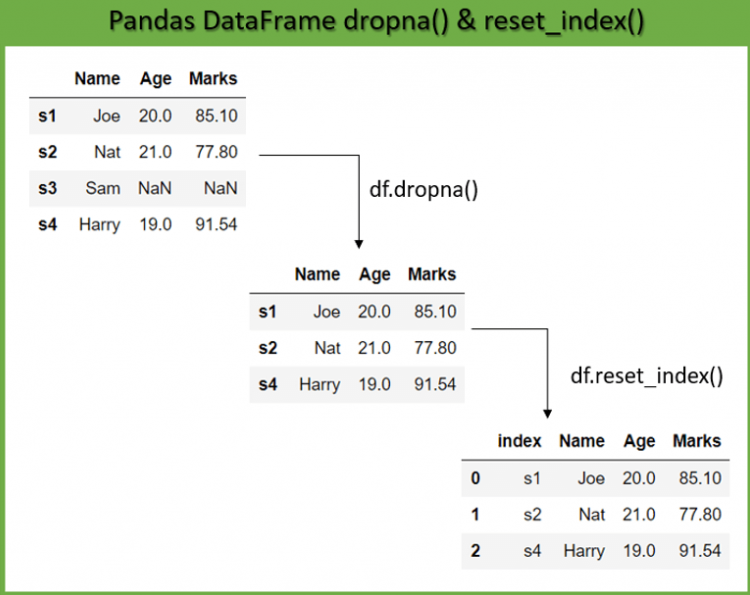
import numpy as np

student_dict = {'Name': ['Joe', 'Nat', np.NaN, 'Harry'], 'Age': [20, 21, np.NaN, 19],
                'Marks': [85.10, 77.80, np.NaN, 91.54]}

# create DataFrame from dict
student_df = pd.DataFrame(student_dict, index=['s1', 's2', 's3', 's4'])
print("Original DataFrame: \n", student_df)

# drop NA
student_df = student_df.dropna()
print("\nDataFrame after dropping N/A: \n", student_df)

# reset index
student_df = student_df.reset_index()
print("\nDataFrame after resetting index: \n", student_df)
Original DataFrame:
      Name   Age  Marks
s1    Joe  20.0  85.10
s2    Nat  21.0  77.80
s3    NaN   NaN    NaN
s4  Harry  19.0  91.54

DataFrame after dropping N/A:
      Name   Age  Marks
s1    Joe  20.0  85.10
s2    Nat  21.0  77.80
s4  Harry  19.0  91.54

DataFrame after resetting index:
   index   Name   Age  Marks
0    s1    Joe  20.0  85.10
1    s2    Nat  21.0  77.80
2    s4  Harry  19.0  91.54
Reset index without new column#
By default, DataFrame.reset_index() adds the current row index as a new index column in DataFrame. If we do not want to add the new column, we can use the drop parameter.
If
drop=Truethen it does not add the new column of the current row index in the DataFrame.If
drop=False, is the default behavior where it adds the new column of the current row index in the DataFrame.
import pandas as pd

student_dict = {'Name': ['Joe', 'Nat', 'Harry'], 'Age': [20, 21, 19], 'Marks': [85.10, 77.80, 91.54]}

# create DataFrame from dict
student_df = pd.DataFrame(student_dict, index=['s1', 's2', 's3'])
print("Before reset index: \n", student_df)

# reset index without new column
student_df = student_df.reset_index(drop=True)
print("\nAfter reset index: \n", student_df)
Before reset index:
      Name  Age  Marks
s1    Joe   20  85.10
s2    Nat   21  77.80
s3  Harry   19  91.54

After reset index:
     Name  Age  Marks
0    Joe   20  85.10
1    Nat   21  77.80
2  Harry   19  91.54
Reset index in place#
In the above examples, whenever we executed reset index operation, pandas created a new copy of DataFrame because the modification is not-in place.
Specify inplace=True to reset index in the existing DataFrame rather than creating a copy of it.
If the
inplace=Truethen it updates the existing DataFrame and does not return anything.If the
inplace=Falsethen it creates a new DataFrame with an updated index and returns it.
Note: You don’t need to assign the result back to a variable as we are performing modifications in place.
import pandas as pd

student_dict = {'Name': ['Joe', 'Nat', 'Harry'], 'Age': [20, 21, 19], 'Marks': [85.10, 77.80, 91.54]}

# create DataFrame from dict
student_df = pd.DataFrame(student_dict, index=['s1', 's2', 's3'])
print("Before reset index: \n", student_df)

# reset index in place
student_df.reset_index(inplace=True)
print("\nAfter reset index: \n", student_df)
Before reset index:
      Name  Age  Marks
s1    Joe   20  85.10
s2    Nat   21  77.80
s3  Harry   19  91.54

After reset index:
   index   Name  Age  Marks
0    s1    Joe   20  85.10
1    s2    Nat   21  77.80
2    s3  Harry   19  91.54
Reset index starts from 1#
Suppose we have a huge dataset which we need to filter. After filtering the DataFrame, it still carries the original index. When we want to reset the index of the DataFrame such that the new index should start with 1, we can do that in two steps,
Use
DataFrame.reset_index()to reset the row index to start at o.Use the
indexparameter of the DataFrame to re-assign the index by adding 1 to each row index of the resultant DataFrame.
import pandas as pd

student_dict = {'Name': ['Joe', 'Nat', 'Harry'], 'Age': [20, 21, 19], 'Marks': [85.10, 77.80, 91.54]}

# create DataFrame from dict
student_df = pd.DataFrame(student_dict, index=['s1', 's2', 's3'])
print("Before reset index: \n", student_df)

# reset index
student_df = student_df.reset_index()

# add 1 to each index
student_df.index = student_df.index + 1

print("\nAfter reset index: \n", student_df)
Before reset index:
      Name  Age  Marks
s1    Joe   20  85.10
s2    Nat   21  77.80
s3  Harry   19  91.54

After reset index:
   index   Name  Age  Marks
1    s1    Joe   20  85.10
2    s2    Nat   21  77.80
3    s3  Harry   19  91.54
Reset index to the range of numbers#
In our student DataFrame, suppose we want to assign the Identity number to each student starting from 101. We can use the index parameter of DataFrame to change the index as a range of numbers that begins at a specific number.
First, we need to generate the range of numbers and then assign it to the DataFrame.index to reset the original index.
import pandas as pd

student_dict = {'Name':['Joe','Nat','Harry'], 'Age':[20,21,19], 'Marks':[85.10, 77.80, 91.54]}

# create DataFrame from dict
student_df = pd.DataFrame(student_dict, index=['s1','s2','s3'])
print("Before reset index: \n", student_df)

# assign new index from 1 to n
student_df.index = pd.RangeIndex(start=101, stop=101+len(student_df), step=1)

print("\nAfter reset index: \n", student_df)
Before reset index:
      Name  Age  Marks
s1    Joe   20  85.10
s2    Nat   21  77.80
s3  Harry   19  91.54

After reset index:
       Name  Age  Marks
101    Joe   20  85.10
102    Nat   21  77.80
103  Harry   19  91.54
Reset index and change column name#
As we have already discussed, DataFrame.reset_index() adds the current index as a new column with the name index in the DataFrame. If we want to give a name to such a newly added column, then we need to use DataFrame.rename() function with DataFrame.reset_index().
import pandas as pd

student_dict = {'Name': ['Joe', 'Nat', 'Harry'], 'Age': [20, 21, 19], 'Marks': [85.10, 77.80, 91.54]}

# create DataFrame from dict
student_df = pd.DataFrame(student_dict, index=['s1', 's2', 's3'])
print("Before reset index: \n", student_df)

# reset index and rename
student_df = student_df.reset_index().rename(columns={'index': 'ID'})
print("\nAfter reset index: \n", student_df)
Before reset index:
      Name  Age  Marks
s1    Joe   20  85.10
s2    Nat   21  77.80
s3  Harry   19  91.54

After reset index:
    ID   Name  Age  Marks
0  s1    Joe   20  85.10
1  s2    Nat   21  77.80
2  s3  Harry   19  91.54
Reset multi-level index#
When Python pandas DataFrame has multiple row index or column headers, then are called multi-level or hierarchical DataFrame. We can apply DataFrame.reset index() on such multi-index DataFrame.
The below diagram shows hierarchical DataFrame of Student data with two-column headers where column labels Name and Marks are at level 0 and Surname and Percentage at level 1. Similarly, two-row indexes where index Standard at level 0 and Class at level 1 of the DataFrame.

import pandas as pd

index = pd.MultiIndex.from_tuples([('Standard 1', 'Class A'),
                                   ('Standard 1', 'Class B'),
                                   ('Standard 2', 'Class A'),
                                   ('Standard 2', 'Class B')],
                                  names=['Standard', 'Class'])
columns = pd.MultiIndex.from_tuples([('Name', 'Surname'),
                                     ('Marks', 'Percentage')])

# create multi-index dataframe
student_df = pd.DataFrame([('Joe', 91.56),
                           ('Nat', 87.90),
                           ('Harry', 70.10),
                           ('Sam', 65.48)],
                          index=index, columns=columns)
print("\nAfter reset index: \n", student_df)
After reset index:
                       Name      Marks
                   Surname Percentage
Standard   Class
Standard 1 Class A     Joe      91.56
           Class B     Nat      87.90
Standard 2 Class A   Harry      70.10
           Class B     Sam      65.48
Now we see how to reset the index of the multi-level DataFrame using DataFrame.reset index(). By default, it reset the index of all the levels and add the new range of indexes in the DataFrame.
# reset multi-level index
student_df = student_df.reset_index()
print(student_df)
     Standard    Class    Name      Marks
                       Surname Percentage
0  Standard 1  Class A     Joe      91.56
1  Standard 1  Class B     Nat      87.90
2  Standard 2  Class A   Harry      70.10
3  Standard 2  Class B     Sam      65.48
Reset index by level#
As we have seen, in the case of a multi-level index, by default DataFrame.reset_index() applies to the index of all the levels. If we want to reset the index of the specific level only then, we can use the level parameter of the DataFrame.reset_index() function.
It takes a level position or level name as input to reset that particular index only.
student_df = pd.DataFrame([('Joe', 91.56),
                           ('Nat', 87.90),
                           ('Harry', 70.10),
                           ('Sam', 65.48)],
                          index=index, columns=columns)

# reset multi-level index by level
student_df = student_df.reset_index(level='Standard')
print(student_df)
           Standard    Name      Marks
                    Surname Percentage
Class
Class A  Standard 1     Joe      91.56
Class B  Standard 1     Nat      87.90
Class A  Standard 2   Harry      70.10
Class B  Standard 2     Sam      65.48
Reset index and creates new column in level#
As we have observed in the above section, by default, DataFrame.reset_index() all the new column at the first level, i.e., level 0. If we want to add the new index column to other levels, we can use the col_level parameter.
It takes the level name or level position as an input if the columns have multiple levels, so it determines which level the labels are inserted into.
student_df = pd.DataFrame([('Joe', 91.56),
                           ('Nat', 87.90),
                           ('Harry', 70.10),
                           ('Sam', 65.48)],
                          index=index, columns=columns)

# reset multi-level index and add at level 1
student_df = student_df.reset_index(level='Standard', col_level=1)
print(student_df)
                       Name      Marks
           Standard Surname Percentage
Class
Class A  Standard 1     Joe      91.56
Class B  Standard 1     Nat      87.90
Class A  Standard 2   Harry      70.10
Class B  Standard 2     Sam      65.48
Reset index and name other level#
As we see in the above section, in multi-level DataFrame, we have added the Standard index at level 1. If there is a case when we need to rename the other level, we need to use the col_fill parameter of DataFrame.
We can specify any existing column label under which the new column will be assigned. If we specify the new label, then it will create one.
student_df = pd.DataFrame([('Joe', 91.56),
                           ('Nat', 87.90),
                           ('Harry', 70.10),
                           ('Sam', 65.48)],
                          index=index, columns=columns)

# reset multi-level index
student_df = student_df.reset_index(level='Standard', col_level=1, col_fill='New_Header')
print(student_df)
         New_Header    Name      Marks
           Standard Surname Percentage
Class
Class A  Standard 1     Joe      91.56
Class B  Standard 1     Nat      87.90
Class A  Standard 2   Harry      70.10
Class B  Standard 2     Sam      65.48